DevOps Bootcamp #1 - Docker
Understanding what Docker is, how it works inside, and how to use it for real projects
On this page
- 1. The problem Docker solves
- 2. What Docker actually is
- 3. Containers vs virtual machines
- 4. How Docker works under the hood
- Namespaces: what a process can see
- Control groups (cgroups): what a process can use
- Union filesystem: how images stay small
- 5. Docker architecture
- What happens when you run docker run -d -p 8080:80 nginx
- 6. Installing Docker and your first container
- 7. Images and layers
- Image names and tags
- Useful image commands
- Choosing a base image
- 8. Containers: lifecycle and essential commands
- Running containers
- Managing containers
- Looking inside
- Restart policies
- 9. Writing a Dockerfile: every instruction explained
- Every instruction
- CMD vs ENTRYPOINT
- Exec form vs shell form
- ARG vs ENV
- The .dockerignore file
- 10. Build cache, multi-stage builds and small images
- How the build cache works
- Multi-stage builds
- More ways to shrink images
- BuildKit extras
- 11. Storage: volumes, bind mounts and tmpfs
- Volumes (use these by default)
- Bind mounts (great for development)
- tmpfs mounts
- The --mount syntax
- Backing up a volume
- 12. Networking
- Network drivers
- Publishing ports
- Custom networks and service discovery
- Handy network commands
- A note on localhost
- 13. Docker Compose for multi-container apps
- Key Compose commands
- Things worth knowing
- 14. Registries: storing and sharing images
- Push an image
- Tagging strategy
- 15. Security best practices
- 16. Debugging and troubleshooting
- The debugging checklist
- Common problems and fixes
- Debugging minimal images
- Cleaning up
- 17. Docker in production and what comes next
- Production habits
- Docker in a CI/CD pipeline
- From one host to many: orchestration
- 18. Cheat sheet and wrap-up
- The whole story in seven lines
Docker lets you pack an app and everything it needs into one box that runs the same way on any machine. This is Part 1 of my DevOps series, and by the end of it you will understand what Docker is, how it works inside, and how to use it for real projects.
Here is what we will cover:
- Why Docker exists and what problem it solves
- Containers, images and how they differ from virtual machines
- What happens under the hood (namespaces, cgroups, layers)
- Writing Dockerfiles, building small images and using the build cache
- Storage, networking and Docker Compose
- Registries, security, debugging and running Docker in production
No prior Docker knowledge is needed. If you can open a terminal and run a command, you are ready.
1. The problem Docker solves
Docker exists to kill the sentence "but it works on my machine." Every developer has heard it, and most have said it.
Picture this. You build a Python app on your laptop. It uses Python 3.12, a certain version of a database driver and a few system libraries. You hand it to a teammate. Their laptop has Python 3.9 and a different driver. The app crashes. Then it goes to the test server, which runs a different Linux version, and it breaks again in a new way.
The code was never the problem. The environment was. Each machine had slightly different software around the code.
Before Docker, teams fought this with:
- Long setup guides ("install these 14 things in this exact order")
- Configuration tools that tried to make every server look the same
- Virtual machines, which worked but were heavy and slow to start
This mess has a name: dependency hell. App A needs library version 1, app B needs version 2, and both live on the same server. Something has to give.
Docker fixes this by shipping the environment together with the code. Instead of saying "here is my code, good luck," you say "here is my code, plus the exact operating system files, runtime, libraries and settings it needs." Whoever runs it gets the same result, every time.
2. What Docker actually is
Docker is a tool for building, shipping and running apps inside containers. Three words do most of the work, so let's nail them down.
Image. A read-only package that holds everything your app needs: a slim set of operating system files, the language runtime, libraries, your code and the command to start it. Think of it as a recipe, or a class in programming.
Container. A running copy of an image. It is an isolated process on your machine that thinks it has its own computer. Think of it as the dish cooked from the recipe, or an object created from a class. One image can start many containers.
Dockerfile. A plain text file with step-by-step instructions to build an image. You write it once, and anyone can build the same image from it.
The flow always looks like this:
- You write a Dockerfile
docker buildturns it into an imagedocker pushuploads the image to a registry (like Docker Hub)- Anyone runs
docker pullanddocker runto start a container from it
The shipping container analogy is where the name comes from. Before standard steel containers, loading a ship meant handling barrels, sacks and crates of every shape. Once everything went into the same box, any crane, ship or truck could move it. Docker does the same for software: any machine with Docker can run any container.
3. Containers vs virtual machines
A virtual machine fakes a whole computer, while a container only fakes a separate space on the same computer. That one difference explains why containers are so much lighter.
A virtual machine (VM) runs on a hypervisor. Each VM has its own full operating system with its own kernel (the core of the OS that talks to hardware). Ten VMs means ten kernels, ten copies of the OS and gigabytes of disk and memory.
A container shares the kernel of the host machine. It only carries the files and libraries the app needs. Ten containers means one kernel, with ten isolated processes on top.
| Virtual machine | Container | |
|---|---|---|
| What it virtualizes | Hardware | The operating system |
| Kernel | Its own, one per VM | Shared with the host |
| Typical size | Gigabytes | Megabytes |
| Start time | Tens of seconds to minutes | Usually under a second |
| Isolation | Very strong | Strong, but weaker than a VM |
| Can run a different OS kernel | Yes (Windows VM on Linux) | No, Linux containers need a Linux kernel |
| Best for | Full OS isolation, mixed OS types | Packaging and running apps |
A common question: "How does Docker run Linux containers on my Mac or Windows laptop?" Docker Desktop quietly starts a small Linux VM, and your containers run inside it. On a Linux machine, no VM is needed.
Containers and VMs are not enemies. In the cloud, your containers usually run on VMs. You get the strong isolation of VMs between customers and the speed of containers for each app.
4. How Docker works under the hood
A container is not magic. It is a normal Linux process with three kernel features wrapped around it: namespaces, cgroups and a layered filesystem. Docker just makes these easy to use.
Namespaces: what a process can see
Namespaces give a process its own private view of the system. Inside a container, the process thinks it is alone. The main ones:
- PID: the container has its own process list. Your app is process 1 inside, even though the host sees it as process 48213.
- NET: its own network interfaces, IP address and ports.
- MNT: its own filesystem tree, so it cannot see the host's files.
- UTS: its own hostname.
- IPC: its own shared memory and message queues.
- USER: its own user IDs, so root inside can map to a normal user outside.
Control groups (cgroups): what a process can use
Namespaces hide things. Cgroups limit things. They cap how much CPU, memory, disk I/O and number of processes a container can use. This stops one greedy container from starving everything else on the machine.
# Allow at most half a CPU core and 256 MB of memory
docker run --cpus=0.5 --memory=256m nginx
If a container goes over its memory limit, the kernel kills it. You will see this as an "OOMKilled" status (Out Of Memory).
Union filesystem: how images stay small
Docker images are built from stacked, read-only layers. A union filesystem (Docker uses one called OverlayFS) merges these layers so they look like one normal folder.
When a container starts, Docker adds one thin writable layer on top. Any file the container changes is copied up into that layer first. This trick is called copy-on-write. The image layers below never change, so 50 containers can share the same image on disk and each only stores its own changes.
Put together: namespaces give isolation, cgroups give limits, and layers give speed and small size. That is a container.
5. Docker architecture
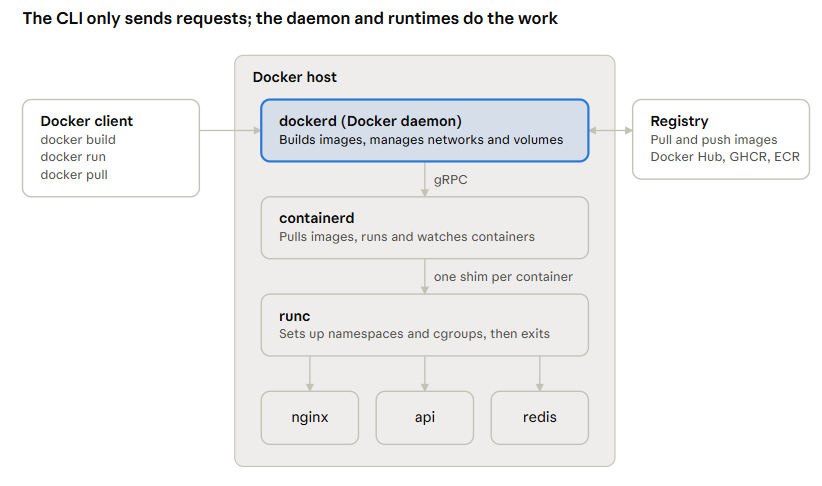
Docker is a client-server system. The docker command you type is only a messenger; the real work happens in a background service and two lower-level runtimes.
Each request flows top to bottom: the client calls the daemon, the daemon asks containerd, and containerd uses runc to start the actual process.
- Docker client (CLI). The
dockercommand. It turns what you type into API calls and sends them to the daemon, either on your machine or on a remote one. - Docker daemon (dockerd). The background service that listens for API calls. It builds images, and manages networks, volumes and the overall state.
- containerd. A container runtime that handles the full life of a container: pulling images, storing them, starting, stopping and watching containers. It is also used directly by Kubernetes.
- runc. The low-level runtime. It talks to the Linux kernel to create the namespaces and cgroups, starts your process, then steps aside. A small shim process stays behind for each container, so containers keep running even if the daemon restarts.
- Registry. A server that stores images. Docker Hub is the default public one.
What happens when you run docker run -d -p 8080:80 nginx
- The CLI sends a "create and start container" request to dockerd
- dockerd checks for the nginx image locally; if missing, it pulls it from the registry layer by layer
- dockerd sets up networking: connects the container to the bridge network and maps port 8080 to 80
- dockerd hands the job to containerd, which prepares the filesystem (image layers plus a writable layer)
- containerd calls runc, which creates the namespaces and cgroups and starts Nginx as process 1
- runc exits, the shim keeps watching the container, and the CLI prints the container ID
All of this follows open standards from the Open Container Initiative (OCI). The image format and the runtime are standardized, which is why an image built with Docker also runs on Podman, containerd or Kubernetes.
6. Installing Docker and your first container
Install Docker, run one command, and you have a working container in under a minute.
On Mac or Windows: install Docker Desktop from the official Docker website. It bundles the engine, the CLI, Compose and the small Linux VM.
On Linux (Ubuntu example): the quickest way is Docker's convenience script.
curl -fsSL https://get.docker.com -o get-docker.sh
sudo sh get-docker.sh

# Run docker without sudo (log out and back in after this)
sudo usermod -aG docker $USER
Note: being in the docker group is the same as having root on that machine. Only add users you trust.
Check that it works:
docker version
docker run hello-world
When you run hello-world, this happens:
- The CLI sends your command to the Docker daemon
- The daemon looks for the
hello-worldimage on your machine and does not find it - It pulls the image from Docker Hub
- It creates a container from the image and starts it
- The container prints a message and exits
Now try something more useful, a real web server:
docker run -d -p 8080:80 --name web nginx
Open http://localhost:8080 and you will see the Nginx welcome page. You just ran a web server without installing Nginx on your machine.
7. Images and layers
An image is a stack of read-only layers plus some metadata, and understanding layers is the key to fast builds and small images.
Every instruction in a Dockerfile that changes files (FROM, RUN, COPY, ADD) creates a new layer. Each layer only stores the difference from the layer below it.
Layer 4:  COPY . /app            (your code, changes often)
Layer 3:  RUN pip install ...    (dependencies)
Layer 2:  RUN apt-get install... (system packages)
Layer 1:  FROM python:3.12-slim  (base OS + Python)
Why this matters:
- Sharing. If ten images use
python:3.12-slimas a base, that base is stored on disk only once. - Faster pulls. When you pull a new version of an image, Docker only downloads the layers that changed.
- Caching. When you rebuild, Docker reuses layers that have not changed (more on this in section 10).
Image names and tags
An image name has up to four parts:
registry/namespace/repository:tag
docker.io/library/nginx:1.27-alpine
- Registry: where it lives. Docker Hub (
docker.io) is the default. - Namespace: the user or organization. Official images use
library. - Repository: the image name.
- Tag: the version. If you leave it out, Docker uses
latest.
A warning about latest: it does not mean "newest." It is just a default tag name, and it can point to anything. In production, always use a specific tag like nginx:1.27-alpine, or even the image digest (nginx@sha256:...), which never changes.
Useful image commands
docker images                   # list local images
docker pull redis:7             # download an image
docker history redis:7          # see the layers and their sizes
docker inspect redis:7          # full metadata in JSON
docker rmi redis:7              # delete an image
docker image prune              # remove unused (dangling) images
Choosing a base image
| Base image | Rough size | When to use it |
|---|---|---|
ubuntu, debian | 75 to 125 MB | You need familiar tools and wide package support |
*-slim (e.g. python:3.12-slim) | Much smaller than the full image | A good default for most apps |
alpine | About 5 to 8 MB | Tiny images; uses musl instead of glibc, which can break some libraries |
distroless | Very small, no shell | Production images with the smallest attack surface |
scratch | 0 MB (empty) | Static binaries, like Go apps |
8. Containers: lifecycle and essential commands
A container moves through a small set of states, and a handful of commands move it between them.
The states are: created (exists but never started), running, paused (frozen in memory), exited (stopped) and removed (gone for good). An exited container still keeps its writable layer, so you can start it again with its changes intact. Only docker rm throws that away.
Running containers
docker run nginx                     # run in the foreground
docker run -d nginx                  # run in the background (detached)
docker run -d --name web nginx       # give it a name
docker run -d -p 8080:80 nginx       # map host port 8080 to container port 80
docker run -it ubuntu bash           # interactive shell (-i keeps input open, -t gives a terminal)
docker run --rm alpine echo hi       # delete the container when it exits
docker run -e APP_ENV=prod myapp     # set an environment variable
docker run --env-file .env myapp     # load variables from a file
docker run --restart unless-stopped nginx   # restart if it crashes or the machine reboots
Managing containers
docker ps                  # running containers
docker ps -a               # all containers, including stopped
docker stop web            # graceful stop (SIGTERM, then SIGKILL after 10s)
docker kill web            # stop immediately (SIGKILL)
docker start web           # start a stopped container
docker restart web
docker pause web           # freeze all its processes
docker unpause web
docker rm web              # delete a stopped container
docker rm -f web           # stop and delete in one go
docker container prune     # delete all stopped containers
Looking inside
docker logs web            # see output
docker logs -f --tail 100 web   # follow the last 100 lines live
docker exec -it web sh     # open a shell inside a running container
docker inspect web         # full details: IP, mounts, env, state
docker stats               # live CPU and memory use
docker top web             # processes inside the container
docker cp web:/etc/nginx/nginx.conf .   # copy a file out
Restart policies
| Policy | What it does |
|---|---|
no | Never restart (the default) |
on-failure[:N] | Restart only if it exits with an error, optionally at most N times |
always | Always restart when it stops. Even if you stopped it by hand, it comes back when the Docker daemon restarts |
unless-stopped | Like always, but stays stopped if you stopped it yourself |
One important idea: containers are meant to be disposable. You should be able to delete one and start a fresh copy at any time without losing anything important. Anything that must survive goes in a volume (section 11).
9. Writing a Dockerfile: every instruction explained
A Dockerfile is a recipe read from top to bottom, and each line is one instruction. Here is a real one for a small Node.js API, followed by what every instruction means.
# syntax=docker/dockerfile:1
FROM node:22-alpine

WORKDIR /app

ENV NODE_ENV=production

COPY package.json package-lock.json ./
RUN npm ci --omit=dev

COPY . .

USER node
EXPOSE 3000

HEALTHCHECK --interval=30s --timeout=3s \
  CMD wget -qO- http://localhost:3000/health || exit 1

CMD ["node", "server.js"]
Build and run it:
docker build -t my-api:1.0 .
docker run -d -p 3000:3000 my-api:1.0
The . at the end of docker build is the build context: the folder whose files Docker can use during the build.
Every instruction
| Instruction | What it does | Example |
|---|---|---|
FROM | Sets the base image. Every Dockerfile starts here | FROM python:3.12-slim |
WORKDIR | Sets the working folder for the next steps (creates it if missing) | WORKDIR /app |
COPY | Copies files from the build context into the image | COPY src/ ./src/ |
ADD | Like COPY, but can also unpack local tar files and download URLs. Prefer COPY unless you need these | ADD app.tar.gz /opt/ |
RUN | Runs a command at build time and saves the result as a layer | RUN apt-get update && apt-get install -y curl |
ENV | Sets an environment variable for build and runtime | ENV PORT=8080 |
ARG | A variable available only at build time | ARG VERSION=1.0 |
EXPOSE | Documents which port the app listens on. It does not publish the port | EXPOSE 8080 |
USER | Switches to a user for the next steps and at runtime | USER appuser |
VOLUME | Marks a folder as a place for persistent data | VOLUME /data |
LABEL | Adds metadata like author or version | LABEL org.opencontainers.image.version="1.0" |
HEALTHCHECK | A command Docker runs to check the app is healthy | HEALTHCHECK CMD curl -f http://localhost/ || exit 1 |
ENTRYPOINT | The main executable of the container | ENTRYPOINT ["python", "app.py"] |
CMD | The default command, or default arguments to ENTRYPOINT | CMD ["--port", "8080"] |
SHELL | Changes the default shell used by RUN | SHELL ["/bin/bash", "-c"] |
STOPSIGNAL | The signal sent to stop the container | STOPSIGNAL SIGINT |
ONBUILD | A trigger that runs when another image uses this one as a base | ONBUILD COPY . /app |
CMD vs ENTRYPOINT
This confuses almost everyone at first, so here is the simple version.
CMDis a default you can easily replace.docker run myimage bashreplaces theCMDwithbash.ENTRYPOINTis the fixed program. Anything you pass todocker runis added as arguments to it.- Used together,
ENTRYPOINTis the program andCMDis its default arguments.
ENTRYPOINT ["python", "cli.py"]
CMD ["--help"]
# docker run tool          -> python cli.py --help
# docker run tool process  -> python cli.py process
Exec form vs shell form
- Exec form:
CMD ["node", "server.js"]. Your app runs directly as process 1 and receives stop signals properly. Use this. - Shell form:
CMD node server.js. Docker wraps it in/bin/sh -c, so the shell is process 1 and your app may not get the stop signal. The result: slow, ungraceful shutdowns.
ARG vs ENV
ARGexists only while building. Pass it withdocker build --build-arg VERSION=2.0 .ENVis baked into the image and visible to the running container.- Never put secrets in either one. Both can be read from the image history.
The .dockerignore file
Like .gitignore, a .dockerignore file tells Docker which files to leave out of the build context. This makes builds faster and keeps secrets out of your image.
node_modules
.git
.env
*.log
Dockerfile
.dockerignore
10. Build cache, multi-stage builds and small images
Small images build faster, pull faster, cost less to store and give attackers less to work with. Three techniques get you there: ordering for the cache, multi-stage builds and cleaning up inside each layer.
How the build cache works
Docker checks each instruction in order. If the instruction and its inputs are the same as last time, it reuses the saved layer. The moment one layer changes, every layer after it is rebuilt.
So put things that rarely change at the top and things that change often at the bottom.
Bad order (every code change reinstalls all dependencies):
FROM python:3.12-slim
WORKDIR /app
COPY . .
RUN pip install -r requirements.txt
CMD ["python", "app.py"]
Good order (dependencies are cached until requirements.txt changes):
FROM python:3.12-slim
WORKDIR /app
COPY requirements.txt .
RUN pip install --no-cache-dir -r requirements.txt
COPY . .
CMD ["python", "app.py"]
Multi-stage builds
To build an app you often need compilers, build tools and dev dependencies. To run it, you need none of those. Multi-stage builds let you use a big image to build and a tiny image to run, and only copy the final result across.
# Stage 1: build
FROM golang:1.23 AS builder
WORKDIR /src
COPY go.mod go.sum ./
RUN go mod download
COPY . .
RUN CGO_ENABLED=0 go build -o /bin/server ./cmd/server

# Stage 2: run
FROM gcr.io/distroless/static-debian12
COPY --from=builder /bin/server /server
USER nonroot
ENTRYPOINT ["/server"]
The builder image is close to 1 GB. The final image holds just your binary and a few files, often around 10 to 20 MB. The Go compiler never ships to production.
The same idea works for Node.js (build the frontend, then serve the static files with Nginx), Java (build with Maven, run on a JRE image) and others.
More ways to shrink images
-
Start from a small base:
-slim,alpineordistroless(see section 7). -
Clean up in the same
RUNline. Files deleted in a later layer still take space in the earlier one.dockerfile RUN apt-get update \ && apt-get install -y --no-install-recommends curl \ && rm -rf /var/lib/apt/lists/* -
Skip package caches:
pip install --no-cache-dir,npm ci --omit=dev. -
Use
.dockerignoresonode_modules,.gitand test data never enter the context. -
Combine related commands into one
RUNto cut layer count.
BuildKit extras
Modern Docker uses BuildKit as its builder by default. It runs independent stages in parallel and adds a few handy features:
# Keep a package cache between builds without putting it in the image
RUN --mount=type=cache,target=/root/.cache/pip pip install -r requirements.txt

# Use a secret during the build without saving it in any layer
RUN --mount=type=secret,id=npmrc,target=/root/.npmrc npm ci
docker build --secret id=npmrc,src=$HOME/.npmrc -t app .
To build for several CPU types at once (for example Intel servers and ARM laptops), use docker buildx:
docker buildx build --platform linux/amd64,linux/arm64 -t me/app:1.0 --push .
11. Storage: volumes, bind mounts and tmpfs
Anything a container writes to its own writable layer disappears when the container is removed. To keep data, you mount storage from outside the container. There are three types.
| Type | Where the data lives | Managed by | Best for |
|---|---|---|---|
| Volume | A folder Docker manages (on Linux, under /var/lib/docker/volumes) | Docker | Databases and any data that must survive |
| Bind mount | Any folder or file you choose on the host | You | Local development, sharing config files |
| tmpfs | The host's memory only, never on disk | The kernel | Temporary or sensitive files that should never hit disk |
Volumes (use these by default)
docker volume create pgdata
docker run -d --name db \
  -e POSTGRES_PASSWORD=secret \
  -v pgdata:/var/lib/postgresql/data \
  postgres:16

docker volume ls
docker volume inspect pgdata
docker volume rm pgdata
docker volume prune        # delete unused anonymous volumes (add -a for named ones too)
Now you can delete the db container, start a new one with the same volume, and all your data is still there.
Bind mounts (great for development)
A bind mount links a folder on your machine into the container. Edit code on your laptop and the container sees the change instantly, which is perfect for hot reload.
docker run -d -p 3000:3000 -v "$(pwd)":/app -w /app node:22 npm run dev

# Read-only mount for config files
docker run -v "$(pwd)/nginx.conf":/etc/nginx/nginx.conf:ro nginx
tmpfs mounts
docker run --tmpfs /tmp:size=64m myapp
The --mount syntax
-v is short and handy. --mount is longer but clearer, and it is what Docker recommends for scripts.
docker run --mount type=volume,source=pgdata,target=/var/lib/postgresql/data postgres:16
docker run --mount type=bind,source="$(pwd)",target=/app,readonly node:22
Backing up a volume
A simple trick: start a throwaway container that mounts the volume and a host folder, then tar the data.
docker run --rm -v pgdata:/data -v "$(pwd)":/backup alpine \
  tar czf /backup/pgdata.tar.gz -C /data .
For databases, a proper dump (like pg_dump) is safer than copying files from a running database.
12. Networking
Every container gets its own network stack, and Docker networks decide who can talk to whom. The most useful rule to remember: containers on the same user-defined network can reach each other by name.
Network drivers
| Driver | What it does | When to use it |
|---|---|---|
bridge | A private virtual network on one host. The default | Most single-host setups |
host | The container uses the host's network directly, no isolation | Max network performance, Linux only |
none | No network at all | Locked-down batch jobs |
overlay | A network that spans many Docker hosts | Docker Swarm clusters |
macvlan | Gives the container its own MAC address on your physical network | Legacy apps that must look like a real device |
Publishing ports
Containers are private by default. To reach one from outside, publish a port with -p HOST:CONTAINER.
docker run -d -p 8080:80 nginx            # host 8080 -> container 80
docker run -d -p 127.0.0.1:8080:80 nginx  # only reachable from this machine
docker run -d -P nginx                    # map all EXPOSEd ports to random host ports
docker port <container>                   # see the mappings
Remember: EXPOSE in a Dockerfile is only documentation. -p is what actually opens the port.
Custom networks and service discovery
The default bridge network does not give you name-based discovery. Create your own network and Docker runs a built-in DNS server for it.
docker network create appnet

docker run -d --name db --network appnet \
  -e POSTGRES_PASSWORD=secret postgres:16

docker run -d --name api --network appnet \
  -e DATABASE_URL=postgres://postgres:secret@db:5432/postgres \
  -p 3000:3000 my-api:1.0
The API reaches the database at the hostname db. No IP addresses needed, and the database port is never exposed to the outside world.
Handy network commands
docker network ls
docker network inspect appnet
docker network connect appnet web      # attach a running container
docker network disconnect appnet web
docker network rm appnet
A note on localhost
Inside a container, localhost means the container itself, not your machine. If your app in a container needs a service running on your laptop, use host.docker.internal (works out of the box on Docker Desktop; on Linux add --add-host=host.docker.internal:host-gateway).
13. Docker Compose for multi-container apps
Real apps are rarely one container. Docker Compose lets you describe the whole stack (API, database, cache, worker) in one YAML file and start it with one command.
Here is a full example: a web API with Postgres and Redis.
# compose.yaml
services:
  api:
    build: .
    ports:
      - "3000:3000"
    environment:
      DATABASE_URL: postgres://app:secret@db:5432/app
      REDIS_URL: redis://cache:6379
    depends_on:
      db:
        condition: service_healthy
      cache:
        condition: service_started
    restart: unless-stopped

  db:
    image: postgres:16
    environment:
      POSTGRES_USER: app
      POSTGRES_PASSWORD: secret
      POSTGRES_DB: app
    volumes:
      - pgdata:/var/lib/postgresql/data
    healthcheck:
      test: ["CMD-SHELL", "pg_isready -U app"]
      interval: 5s
      retries: 5

  cache:
    image: redis:7-alpine

volumes:
  pgdata:
Compose creates a private network for the project automatically, so api reaches the others as db and cache.
Key Compose commands
docker compose up -d          # build if needed and start everything in the background
docker compose up -d --build  # force a rebuild
docker compose ps             # status of each service
docker compose logs -f api    # follow logs of one service
docker compose exec db psql -U app   # run a command in a service
docker compose stop           # stop, keep containers
docker compose down           # stop and remove containers and network
docker compose down -v        # also remove volumes (deletes your data)
docker compose up -d --scale worker=3   # run 3 copies of a service
Things worth knowing
depends_ononly controls start order. By itself it does not wait for the database to be ready. Add ahealthcheckandcondition: service_healthy, as above.- Use a
.envfile. Compose reads a.envfile next tocompose.yaml, so you can write${POSTGRES_PASSWORD}instead of hard-coding secrets. - Override files. Keep a base
compose.yamland addcompose.override.yamlfor dev-only settings like bind mounts. Compose merges them automatically. - Profiles let you mark optional services (like an admin UI) that only start with
docker compose --profile tools up. - Watch mode.
docker compose watchcan sync code changes into running containers or rebuild them as you edit. - The old
docker-compose(with a dash) command is retired. Usedocker compose(with a space), and you can drop theversion:line from your file.
Compose is perfect for local development, testing and small single-server deployments. For many servers, you move to an orchestrator like Kubernetes.
14. Registries: storing and sharing images
A registry is like GitHub for images: you push images to it, and any machine can pull them. Docker Hub is the default, but every major cloud has its own.
| Registry | Run by |
|---|---|
Docker Hub (docker.io) | Docker |
GitHub Container Registry (ghcr.io) | GitHub |
| Amazon ECR | AWS |
| Google Artifact Registry | Google Cloud |
| Azure Container Registry | Microsoft |
| Harbor | Open source, self-hosted |
Push an image
docker login                                  # or: docker login ghcr.io
docker tag my-api:1.0 harry/my-api:1.0        # name it for your account
docker push harry/my-api:1.0

# Anywhere else:
docker pull harry/my-api:1.0
Tagging strategy
A good tagging habit saves you from "which version is running in production?" panics.
- Semantic versions:
1.4.2, plus moving tags like1.4and1 - Git commit SHA:
my-api:3f9c2a1, so every image traces back to exact code - Never deploy
latestto production. You lose track of what is running and rollbacks get messy.
For quick local experiments you can even run your own registry:
docker run -d -p 5000:5000 --name registry registry:2
docker tag my-api:1.0 localhost:5000/my-api:1.0
docker push localhost:5000/my-api:1.0
15. Security best practices
Containers share the host kernel, so a weak container can become a doorway to the whole machine. These habits close most of those doors.
-
Do not run as root. By default, processes in a container run as root. Create a normal user and switch to it.
dockerfile RUN addgroup --system app && adduser --system --ingroup app app USER app -
Use small, trusted base images. Official or verified images, in
-slim,alpineordistrolessform. Fewer packages means fewer vulnerabilities. -
Pin versions. Use exact tags or digests so a surprise update never sneaks in.
-
Scan your images. Tools like Docker Scout (
docker scout cves my-api:1.0) and Trivy (trivy image my-api:1.0) list known vulnerabilities in your packages. Run them in CI. -
Keep secrets out of images. Never
COPY .envor put passwords inENVorARG. Pass secrets at runtime (environment variables from a secret manager, Docker secrets, or mounted files) and use BuildKit--mount=type=secretfor build-time secrets. -
Make the filesystem read-only where you can, with a small tmpfs for scratch space.
bash docker run --read-only --tmpfs /tmp myapp -
Drop Linux capabilities. Capabilities are pieces of root power. Remove all of them and add back only what you need.
bash docker run --cap-drop ALL --cap-add NET_BIND_SERVICE myapp -
Block privilege escalation:
--security-opt no-new-privileges. -
Never use
--privilegedunless you truly know why. It gives the container almost full access to the host. -
Never mount the Docker socket (
/var/run/docker.sock) into a container you do not fully trust. Access to that socket is the same as root on the host. -
Set resource limits (
--memory,--cpus,--pids-limit) so one container cannot take down the machine. -
Consider rootless mode. Docker can run the whole daemon as a normal user, which limits the damage if something breaks out.
-
Rebuild regularly. Base images get security patches. An image built a year ago carries a year of known bugs.
16. Debugging and troubleshooting
Most Docker problems fall into a few common patterns, and a short checklist solves almost all of them.
The debugging checklist
- Is it running?
docker ps -ashows the status and exit code. - What did it say?
docker logs <container>shows the error your app printed before dying. - What does Docker know?
docker inspect <container>shows state, exit code, OOMKilled, mounts, env and network. - Get inside.
docker exec -it <container> shlets you look around, check files and test connections. - Is it starving?
docker statsshows CPU and memory use live. - What is Docker doing?
docker eventsstreams everything the daemon does.
Common problems and fixes
| Symptom | Likely cause | Fix |
|---|---|---|
| Container exits right after starting | The main process finished or crashed. Containers live only as long as process 1 | Check docker logs; make sure CMD runs a long-lived process in the foreground |
| Exit code 137 | Killed with SIGKILL, often out of memory | Check OOMKilled in docker inspect; raise --memory or fix the leak |
| Exit code 143 | Stopped with SIGTERM (a normal stop) | Usually fine; make sure your app handles SIGTERM gracefully |
| Exit code 126 or 127 | Command not executable, or not found | Check the path in CMD/ENTRYPOINT and file permissions (chmod +x) |
| "port is already allocated" | Another process or container uses that host port | Pick another host port or stop the other one |
| App works in container but not from browser | App listens on 127.0.0.1 inside the container | Make the app listen on 0.0.0.0 |
| Containers cannot reach each other by name | They are on the default bridge network | Put them on a custom network or use Compose |
| "no space left on device" | Old images, containers, volumes and build cache | docker system df to see usage, docker system prune to clean |
| "permission denied" on mounted files | User IDs inside and outside do not match | Match the UID with --user or fix ownership on the host |
| Build is slow every time | Cache busted early (e.g. COPY . . before installing deps) | Reorder the Dockerfile and add .dockerignore |
| "exec format error" | Image built for a different CPU (ARM vs x86) | Build with --platform or use buildx for multi-platform images |
Debugging minimal images
Distroless and scratch images have no shell, so docker exec sh fails. Options:
- Temporarily build a
-debugvariant (distroless offers these) with a shell - Attach a debug container that shares the target's namespaces:
docker debug <container>(Docker Desktop) ordocker run -it --pid=container:<name> --network=container:<name> busybox
Cleaning up
docker system df                 # what is using space
docker system prune              # remove stopped containers, unused networks, dangling images, build cache
docker system prune -a --volumes # remove everything unused, including anonymous volumes (careful)
docker builder prune             # clear just the build cache
17. Docker in production and what comes next
Running containers on your laptop and running them for real users are different jobs. In production, you care about images that are repeatable, apps that fail gracefully and systems that heal themselves.
Production habits
- One process per container. Run the API in one container and the worker in another. They scale, restart and log independently.
- Stateless containers. Keep state in databases, object storage or volumes, never in the container's own layer.
- Config through environment. The same image should run in dev, staging and prod. Only the environment variables change (the twelve-factor app idea).
- Log to stdout and stderr. Do not write log files inside the container. Docker collects stdout, and a log driver ships it to your logging system.
- Health checks. Add a
HEALTHCHECKor let your orchestrator probe a/healthendpoint so broken containers get replaced. - Graceful shutdown. Handle SIGTERM: stop taking new requests, finish current ones, close connections, then exit.
- Use an init process if your app spawns child processes.
docker run --initadds a tiny init that reaps zombie processes and forwards signals. - Limit resources for every container so the scheduler can place them well and nothing runs wild.
Docker in a CI/CD pipeline
A typical pipeline looks like this:
- Developer pushes code to Git
- CI builds the image with
docker build, tagged with the commit SHA - CI runs tests inside the container
- CI scans the image for vulnerabilities
- CI pushes the image to a registry
- The deploy step tells the servers or the orchestrator to run the new tag
The image that passed the tests is the exact image that runs in production. That is the big win.
From one host to many: orchestration
Docker alone runs containers on one machine. When you have many machines, you need something to decide where each container runs, restart failed ones, roll out updates and balance traffic. That is an orchestrator.
- Docker Swarm: built into Docker, simple to learn, good for smaller setups.
- Kubernetes: the industry standard. More complex, but it handles scaling, self-healing, rolling updates and service discovery across huge clusters.
- Managed services: AWS ECS and Fargate, Google Cloud Run, Azure Container Apps. You give them an image and they run it.
One helpful fact: Kubernetes does not need Docker itself to run containers. It talks to runtimes like containerd directly. But the images you build with Docker follow the OCI standard, so they run on Kubernetes unchanged. Your Docker skills carry over completely.
That is exactly where this series goes next.
18. Cheat sheet and wrap-up
Keep this table handy. It covers the commands you will use 90% of the time.
| Task | Command |
|---|---|
| Build an image | docker build -t name:tag . |
| List images | docker images |
| Run a container in the background | docker run -d --name app -p 8080:80 image |
| List running / all containers | docker ps / docker ps -a |
| See logs | docker logs -f app |
| Shell into a container | docker exec -it app sh |
| Stop / start / remove | docker stop app / docker start app / docker rm app |
| Inspect details | docker inspect app |
| Live resource use | docker stats |
| Create a volume | docker volume create data |
| Create a network | docker network create appnet |
| Tag and push | docker tag app user/app:1.0 then docker push user/app:1.0 |
| Start a Compose stack | docker compose up -d |
| Stop a Compose stack | docker compose down |
| Clean up | docker system prune |
The whole story in seven lines
- Docker packages an app with its whole environment, so it runs the same everywhere.
- A Dockerfile builds an image; an image runs as one or more containers.
- Containers are Linux processes isolated by namespaces, limited by cgroups and built on layers.
- Order your Dockerfile for the cache and use multi-stage builds for small images.
- Use volumes for data that must survive and custom networks so containers find each other by name.
- Use Compose for multi-container apps and a registry to share images.
- Run as non-root, pin versions, scan images and keep secrets out.
Next in the DevOps series: Kubernetes, where we take these containers from one machine to a whole cluster.